Trace Drawing: How To Draw
GeniusTools LabsArt & Design
4.6534.00 Reviews
- Version
- 4.1.2
- Installs
- 10.00M
- Age Rating
- Everyone
Screenshots
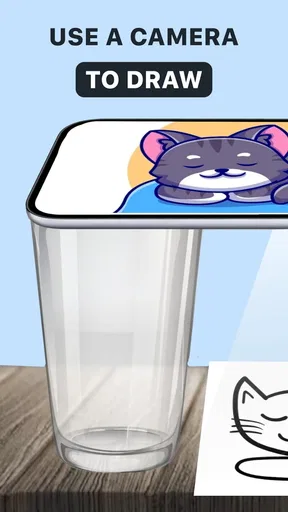
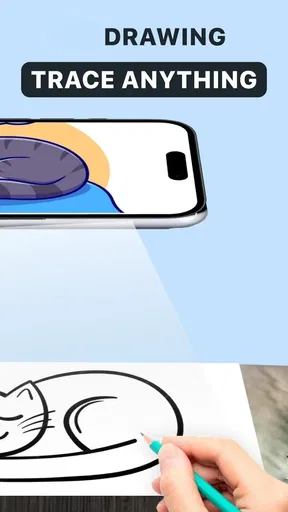
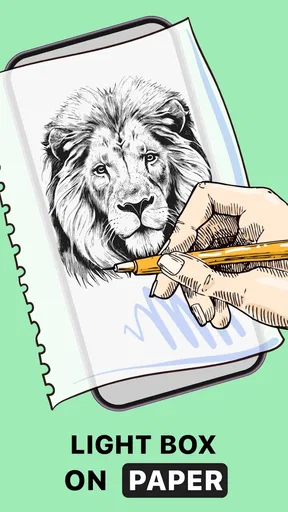
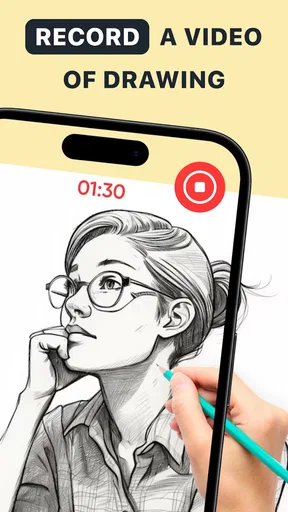
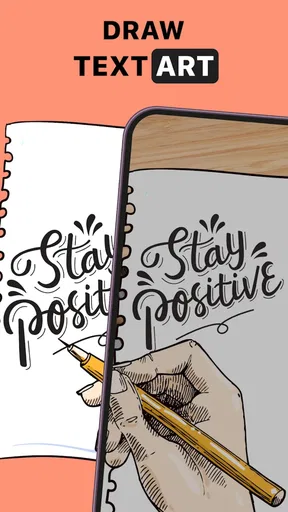
Our Review of Trace Drawing: How To Draw
 Analysis by Appyee
I tried AR Drawing: Trace Anything as a practical way to get an image onto paper, and its appeal is easy to understand: it turns a phone into a visual guide while you draw. I found it most useful when I wanted help with placement and proportions, rather than a tool that would do the drawing for me. That distinction matters. It can make starting less intimidating, but the pencil, the choices, and the finished marks are still yours.
What the free option means in practice
The app is free to download, with in-app purchases listed from $0.99 to $99.99 per item. That gives you a no-cost way to try the basic tracing workflow before deciding whether anything beyond it is worth paying for. I would treat the free access as a chance to test the central idea with a real sketch, not as a promise that every image or feature will always be available without purchase.
Because those purchase amounts span a wide range, I’d check what an in-app offer actually includes before buying. A low entry point can sound inviting, but the useful question is whether the specific item solves a problem you have, such as helping you work with the kinds of references you already want to draw. If the basic process is enough for occasional practice, there’s no reason to spend just because an offer appears.
Where the tracing workflow earns its keep
The strongest value is in reducing the blank-page problem. Instead of repeatedly guessing at the outline of a subject, I can use a reference as a guide and spend more attention on steady lines, shading, or choosing which details to keep. That makes the app especially handy for a first attempt at a subject whose proportions feel difficult, or for a casual craft project where a recognizable outline matters more than freehand accuracy.
There is a useful middle ground between copying mechanically and drawing entirely from memory. I can trace the broad silhouette first, then put the phone aside and finish smaller details by eye. That approach keeps the reference helpful without turning every mark into a follow-the-line exercise. For someone learning, it also makes it easier to notice which parts of a subject are simple shapes and which need more careful observation.
A realistic use would be making a quick handmade card at home. I could choose a suitable reference, position it over the paper, trace the main outline, and then add lettering or color on my own. Before getting comfortable with the phone’s placement, I’d make a small test sketch on spare paper. That lets me check whether the image sits where I want it and whether the paper and phone are positioned comfortably before I commit to a finished piece.
Useful habits, and the limits of AR
For cleaner results, I’d start with a reference that has a clear outline and only a few important details. A busy image can be harder to follow, especially when the drawing surface is small or I’m still learning to keep my hand steady. I’d also make the first tracing pass lightly in pencil; it is easier to correct a misplaced outline before adding darker lines or color. These small choices can matter more than searching for a perfect reference.
Phone placement is another part of the technique, not a detail the app can solve for you. I need to keep the device steady and avoid shifting the paper halfway through a drawing. If the setup feels awkward, a stand or another stable way to hold the phone may help, though that is simply a practical drawing aid rather than a special app feature. I also wouldn’t expect the on-screen guide to replace good lighting, a comfortable angle, or patience.
AR tracing is not the best fit for every goal. If I want to invent a character from scratch, explore loose gestures, or train my eye to judge proportions without a guide, freehand practice is more direct. A tablet drawing app is a better choice for someone who wants to work digitally, edit layers, and keep the whole process on-screen. This app’s distinctive purpose is helping transfer a visual reference to physical paper, so its value depends on wanting that particular bridge.
Getting Started with Augmented Reality
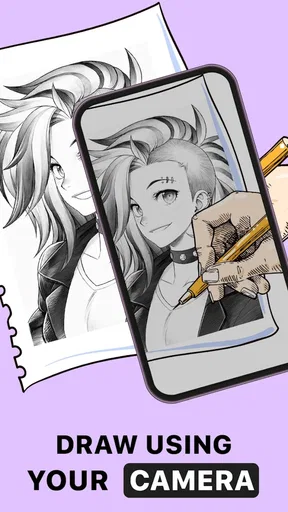
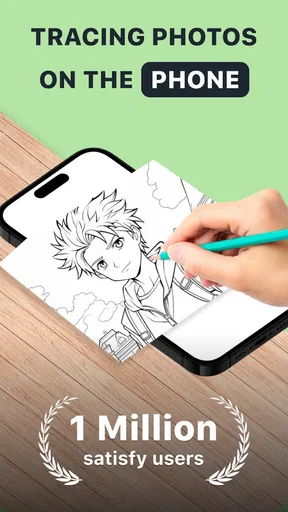
So, what's the big deal with AR Drawing: Trace Anything? Well, this app uses augmented reality to project images onto your phone screen, which you can then trace onto paper. Sounds like magic, right? You simply choose an image, hold your phone over your drawing surface, and start tracing. It's like having a virtual stencil that guides your hand.
Setting it up is a breeze. You don't need to be a tech wizard to get going. Just download the app, pick an image from the library or upload your own, and you're ready to dive into the world of augmented reality drawing.
User Experience: A Seamless Journey
Let's talk about how user-friendly this app is. The interface is clean and intuitive, which means you're not going to spend ages figuring out what does what. The developers have done a commendable job of keeping things simple, yet effective.
When you're using AR for the first time, it might feel a bit strange, kind of like learning to ride a bike. But once you get the hang of it, it becomes incredibly satisfying. The app allows you to adjust the size and position of the image, making sure it fits perfectly onto your paper, which is pretty neat.
Features Galore
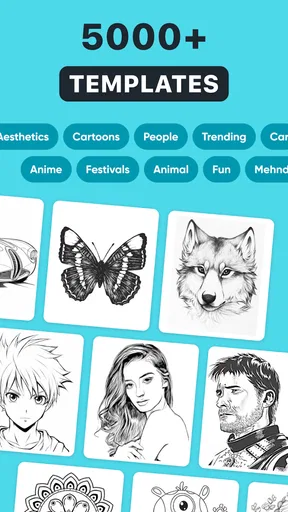
Now, let's dive into some of the features that make this app shine. First up, the image library. It's packed with a variety of images ranging from simple shapes to intricate designs. And if you want to bring your own flair, you can upload your own images to trace. This flexibility is a game-changer for aspiring artists looking to broaden their skills.
The app also includes a handy grid feature that helps maintain proportions, especially useful if you're working on larger projects. And for those who love precision, the app provides a zoom function, so you can focus on the finer details without straining your eyes.
One thing I’d keep in mind is that fitting an image to paper is a different task from choosing an image that will trace well. A photograph with lots of soft shadows may be appealing on a screen but difficult to translate into a clear outline. When I bring in a personal reference, I’d look for a strong subject boundary and decide in advance which details I actually want to copy. The app can guide the placement; it cannot decide what will make a good drawing.
The grid and zoom are most useful when I treat them as aids rather than shortcuts. A grid can help me compare sections and avoid letting one part grow much larger than another, while zoom can make a small feature easier to follow. On a large sheet, though, I’d work in stages and recheck the overall proportions instead of trusting a close-up view alone. Enlarging one detail without keeping the whole image in mind can make a locally neat drawing feel unbalanced.
"Drawing is the honesty of the art. There is no possibility of cheating. It is either good or bad." - Salvador Dalí
Perfect for All Ages
One of the things I love about this app is its versatility. Whether you're a complete beginner or a seasoned artist, there's something here for everyone. Kids can enjoy tracing their favorite cartoon characters, while adults might find joy in recreating complex patterns. It's a great tool for art teachers too, providing a fun way to engage students in learning drawing techniques.
For a parent or teacher, I’d use it as a starting point for a short activity rather than expecting the phone to teach drawing on its own. A child can trace a simple outline, then choose colors or add a background without guidance from the screen. That second step is valuable: it gives the young artist room to make decisions and helps keep the exercise from becoming only a test of how closely they can follow a projected line. The Everyone age rating makes it broadly suitable, but an adult may still want to help younger children manage the device while drawing.
It can also suit someone who already sketches but wants a dependable way to transfer a reference for a one-off project. I wouldn’t recommend it as the only practice method for an experienced artist; tracing doesn’t build every skill that observational drawing does. Used selectively, however, it can save time on a preliminary outline and leave more energy for the parts of the work that need personal interpretation.
Room for Improvement
While the app is pretty fantastic, there are a couple of things that could be improved. For one, the app works best in well-lit spaces, so if you're in a dimly lit room, the experience might not be as smooth. Also, while the image library is extensive, I would love to see more updates with additional images and categories.
The physical setup is part of that limitation. I need a surface that lets me see the paper and screen together, and holding a phone in one position for a long session can become tiring. For a quick outline this may be a minor inconvenience; for a detailed drawing, it can interrupt concentration. I’d plan for short tracing passes, pause when my hand or arm gets uncomfortable, and finish parts of the picture without relying on the overlay.
It is also worth remembering what this kind of tool does not change: tracing can help with the initial transfer, but it does not automatically produce clean line quality, thoughtful composition, or convincing shading. If those are the parts I want to improve, I still need to practice them separately. Someone looking for guided lessons, a complete digital studio, or a traditional projector for larger artwork may be better served by a tool designed around that specific need.
Who should try it, and who should pass
GeniusTools Labs makes this art-and-design app, which has a 4.6 average from around 49,000 ratings and more than five million installs. It is free to download, is rated for Everyone, and its current version is 4.1.0; it runs on Android 5.0 and later. Those details make it easy to consider as a low-commitment experiment, particularly if you already have paper and pencils and want to see whether an AR guide suits your way of drawing.
I’d recommend trying it if you are a beginner who freezes at the blank page, a parent looking for a simple drawing activity, or a hobbyist who wants to transfer a chosen reference onto paper. I’d skip it if your main aim is to learn drawing entirely from observation, make polished digital illustrations, or work on a large surface without arranging a phone above it. In those situations, a sketchbook and structured practice, a tablet-based art app, or a conventional projector may fit better than an AR tracing workflow.
Compared with a printed stencil, the phone-based approach is more flexible when you want to change the reference or adjust how it sits on the page. Compared with freehand drawing, it offers more guidance but less practice judging every proportion unaided. Compared with digital art software, it is aimed at transferring a guide to physical paper rather than building and editing a finished image on a screen. I see that narrow focus as a strength when it matches the task, and a reason not to treat it as an all-purpose art tool.
If you’re wondering whether you need artistic experience to begin, I don’t think so: a simple outline and a willingness to make a few test marks are enough to get a feel for it. If you’re wondering whether it will make you a better freehand artist by itself, I’d say no. Use it to get past the first outline, then occasionally put the phone aside and redraw a small section from memory. That turns a convenient guide into a more active practice exercise.
Final Thoughts
In the end, AR Drawing: Trace Anything is an exciting app that's not only fun but also educational. It bridges the gap between technology and art, providing a unique way to learn and practice drawing. Whether you're looking to pick up drawing as a hobby or want to enhance your skills, this app offers a creative and innovative solution. So, grab your phone, a pencil, and some paper, and let your artistic journey begin!
My buying advice is straightforward: start with the free experience and complete a small drawing before considering any in-app purchase. If the tracing process makes you more likely to sit down and create, that can be worthwhile even when the result is a simple sketch. If you find yourself fighting the phone setup or wanting tools for digital editing, there’s little reason to pay for an approach that does not match your goal. For me, it is best understood as a convenient paper-drawing aid, not a replacement for practice or a full art studio.
Privacy and Permissions
See what permissions an app requests and how it handles your data.
- Photos/Media/Files
- read the contents of your USB storage, modify or delete the contents of your USB storage
- Storage
- read the contents of your USB storage, modify or delete the contents of your USB storage
- Camera
- take pictures and videos
- Wi-Fi connection information
- view Wi-Fi connections
- Other
- view network connections, full network access, run at startup, control vibration, prevent device from sleeping, Google Play license check
Verdict
Strengths of Trace Drawing: How To Draw
- Easy-to-use interface for beginners.
- Wide variety of drawing templates available.
- Adjustable transparency for better tracing.
- Works offline for uninterrupted creativity.
- Supports multiple languages for global users.
Limitations of Trace Drawing: How To Draw
- Limited free features in basic version.
- No integration with cloud storage options.
- Occasional lag on older devices.
- Ads can be distracting during use.
- No option for custom template uploads.
Other Releases by GeniusTools Labs
View All
Widget 2026: Aesthetic Widgets
Personalization4.6

GPS Maps Voice Navigation App
Maps & Navigation4.8

Sweet Editor Camera Lite
Beauty4.6

Who Is Tracking My Phone?
Tools3.9
Similar Picks in This Category
View All
Canva: AI Photo & Video Editor
Canva4.8

PENUP – Drawing-sharing SNS
Samsung Electronics Co., Ltd.4.5

Crafto
Kutumb App4.6

Sketchbook
Sketchbook4.1

ibis Paint X
ibis inc.4.5

Adobe Express: AI Photo, Video
Adobe4.6
Frequently Asked Questions
What is AR Drawing: Trace Anything and how does it work?
AR Drawing: Trace Anything is an innovative app that allows users to trace images using augmented reality (AR) technology. By projecting images onto a real-world surface through your device's camera, you can trace and replicate them with ease. This app is perfect for artists, hobbyists, and anyone looking to improve their drawing skills.
Is AR Drawing: Trace Anything suitable for beginners?
Yes, AR Drawing: Trace Anything is designed to be user-friendly and accessible to artists of all skill levels. Beginners will find the app particularly helpful as it provides an easy way to learn drawing techniques. The AR overlay guides users through the tracing process, making it simple to produce accurate and detailed drawings.
What devices are compatible with AR Drawing: Trace Anything?
AR Drawing: Trace Anything is compatible with most modern Android and iOS devices that support augmented reality features. To ensure compatibility, your device should have a functioning camera and an AR-enabled processor. It's recommended to check the app store listing for specific device requirements before downloading.
Do I need to be connected to the internet to use AR Drawing: Trace Anything?
While AR Drawing: Trace Anything requires an internet connection for the initial download and updates, it can be used offline once installed. This means you can enjoy tracing images and practicing your drawing skills without needing a constant internet connection, making it convenient for use anywhere.
Are there any in-app purchases or subscription fees associated with AR Drawing: Trace Anything?
AR Drawing: Trace Anything offers a free version with basic features. However, to access advanced tools and additional image packs, users may need to make in-app purchases or subscribe to a premium plan. These options enhance the app's functionality and provide more resources for artistic exploration.
